Hello world!! Welcome to the first blog of hopefully many ramblings featuring all types of cybersecurity-related writeups and research. The aim here is to give something back to the cybersecurity industry that’s been good to me, and hopefully help some people with some interesting stuff.
I’ve got a bit of a hatred (okay, hate might be too strong) for hypervisors like VirtualBox and VMware. Ditching them for Windows Subsystem for Linux (WSL) fixed the constant crashing, but it handed me a fresh, pretty annoying quirk to battle with over the last few months.
However, as a frequent bug bounty hunter and user of tools such as Burp Suite and Caido, I wanted to keep Claude Code cleanly isolated in WSL while still letting it observe the traffic I was intercepting on my Windows host (probably a better way to do this, but we’re doing it anyway!!).
The problem
So what is the problem with this? Well, let me tell you…
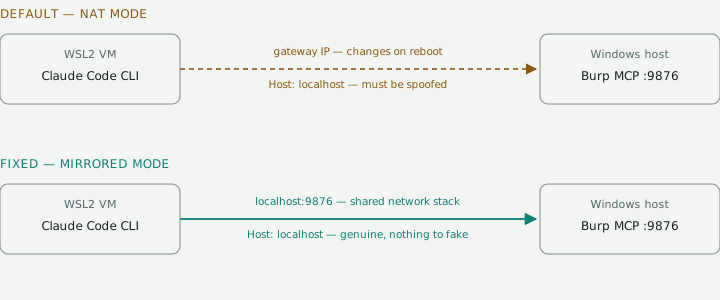
- WSL2 runs in its own network namespace. It’s basically a small VM, so
localhostin your Linux shell isn’t the same socket aslocalhoston Windows. Burp binds to Windows loopback, Claude reaches into WSL’s loopback, and the two never meet. Mirrored networking collapses them into one — that’s the whole reason step 1 exists. - Burp’s MCP server only accepts requests with
Host: localhost, and there’s no toggle for it in the UI. So even after you punch through the network gap using WSL’s gateway IP, the request lands with the wrongHostand Burp hands back a 403. Mirrored mode dodges this for free, becauselocalhostbecomes genuinely correct from the WSL side. Without it, you’re spoofing the header on every request and re-checking the gateway IP after every Windows reboot.
So the fiddling isn’t really about Burp or Claude — it’s paying off the mismatch between WSL living in its own VM and Burp being a Windows-loopback-only app. Mirrored networking does most of the work, and then all we need to do is tell Burp to bind somewhere WSL can actually get to!
The fix
First off, we need to enable mirrored network mode in WSL, so let’s open a config file and make sure it’s on.
1. Turn on WSL mirrored networking (Windows side)
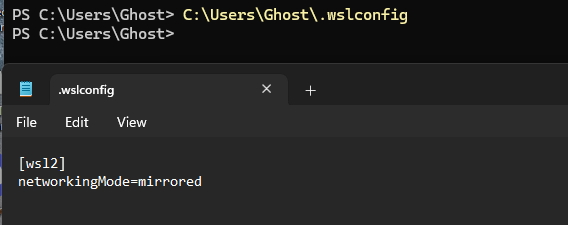
Open C:\Users\<you>\.wslconfig in Notepad. Create it if it isn’t there. Put
this in:
[wsl2]
networkingMode=mirrored
It should look something like this:
From PowerShell — not from inside WSL — shut down the system (you’ll shut yourself out mid-command otherwise):
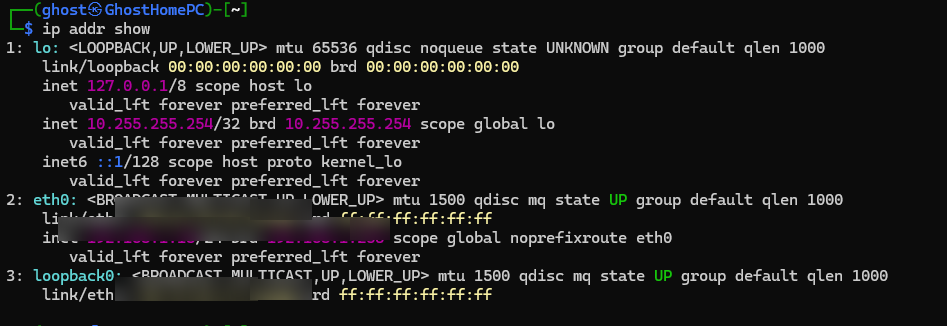
wsl --shutdownReopen the WSL terminal. Run ip addr show. You should see an interface with
your actual Windows LAN IP on it. That means it worked 😉
2. Point Burp’s MCP server at something reachable
We now need to make sure you have the Burp MCP extension downloaded from the BApp Store:

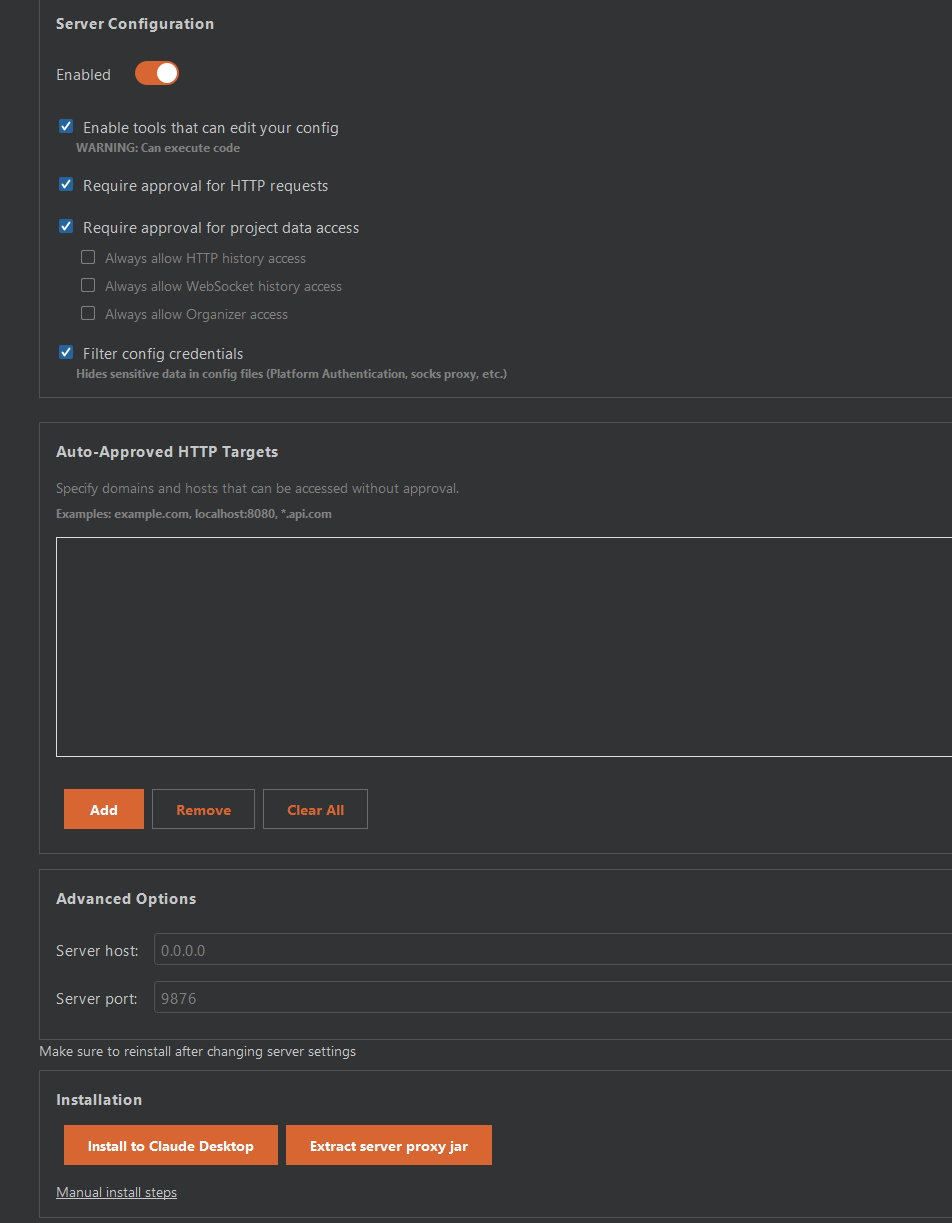
Then in Burp, toggle the enabled button until you’re able to type in the following info below — and head to the advanced settings section.
- Server host:
0.0.0.0 - Server port:
9876
Leave the approval prompts on. Toggle the server off and back on so the new bind address takes effect.
3. Register it with Claude Code (WSL side)
Hopefully you already have a Claude Code install available within your WSL. If you don’t, go do that! If you do, run the commands below:
claude mcp add burp --transport sse "http://localhost:9876/"
claude mcp list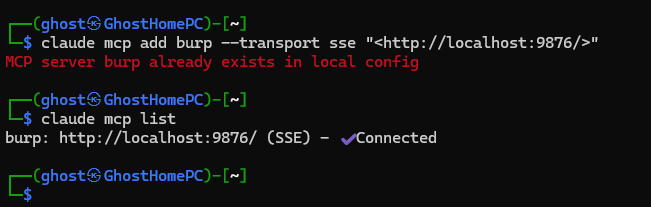
Wow, that was quick! Okay, so probably not as complex as I initially thought it would be.
So let’s test that it works. Set your proxy up to capture some traffic. Here we’re using an online, purposely vulnerable web application.
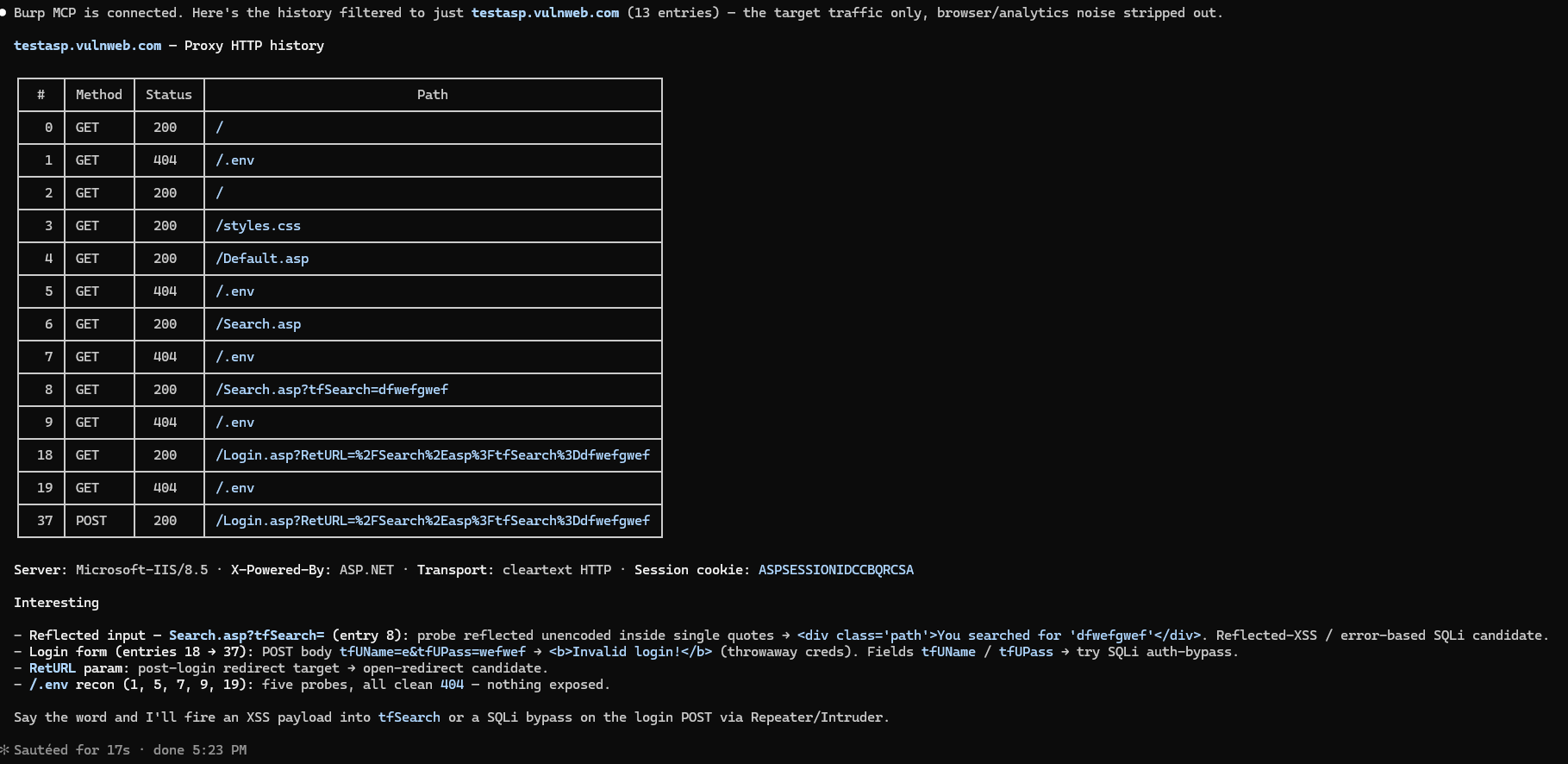
Nice! So it looks like a success to me. Hopefully this has been useful — happy hunting!